GETTING STARTED

HOW TO RUN YOUR FANTASY FOOTBALL DRAFT, START TO FINISH.

New to FF Drafter? Take the 60-second Tour

WHAT ARE YOU DOING?
FORMAT
LOCAL OR ONLINE?

Mocks run Local – you against the bots.

Managers join Online drafts – a Local draft runs on the commissioner's screen.

What's free vs Premium →

SET UP YOUR LEAGUE

For Online drafts, where you'll be inviting leaguemates, start by setting up your league. From Home, hit Create League.

Import from Sleeper or set it up manually. Then hit Create.
Use League Settings to set up your league's default draft format, QB format, and roster settings.
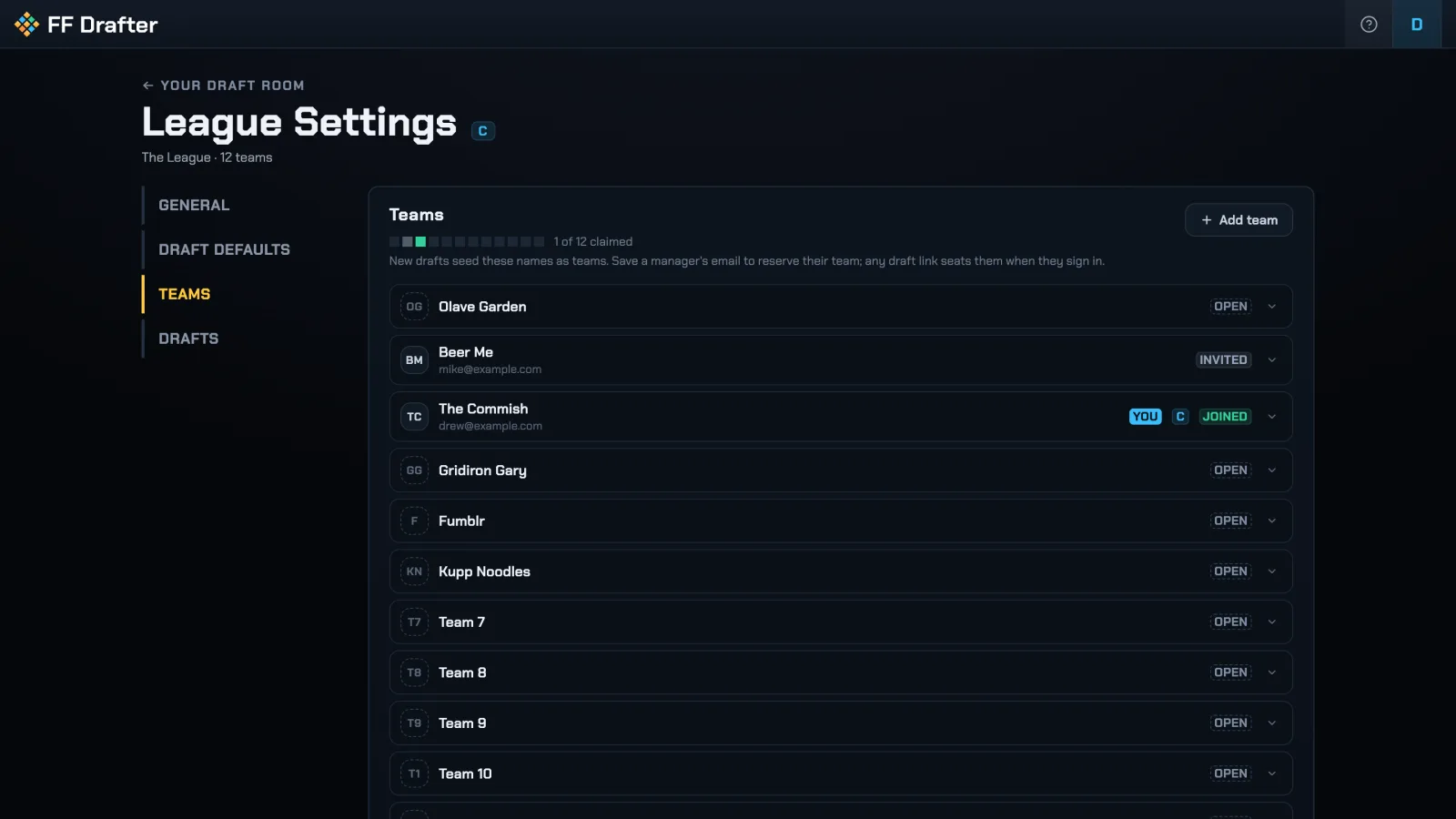
Teams tab: enter or confirm team names, and claim a team as your own.
You can invite managers in two ways: assign an email address to a team and Send Invite – or simply share the invite link with your league and let each person claim their own team.
League Settings, Teams tab: team names with open, invited, and claimed seats

SET UP A DRAFT

From the Drafts tab on League Settings, hit New Draft. Or, from Home, hit START A DRAFT and choose Online.

Select your league.
Ensure the draft type is set to Online, and basic draft settings are correct. Optionally schedule a start time.
Hit Create Online Draft.
Draft Setup – ensure all your settings are correct.
Display Options – configure these settings to your personal preference.
Teams – randomize the draft order or set it manually. Optionally enable keepers: set per-team keepers and the keeper cost. Set the default budget, and optionally customize budgets for each team. Optionally enable keepers: set per-team keepers and the round each keeper costs.
Confirm Settings.

Managers who've accepted your league invite see the draft on their own Home page automatically – you'll also get a draft link to share. Display options can be changed mid-draft; other options stay editable until the draft starts.
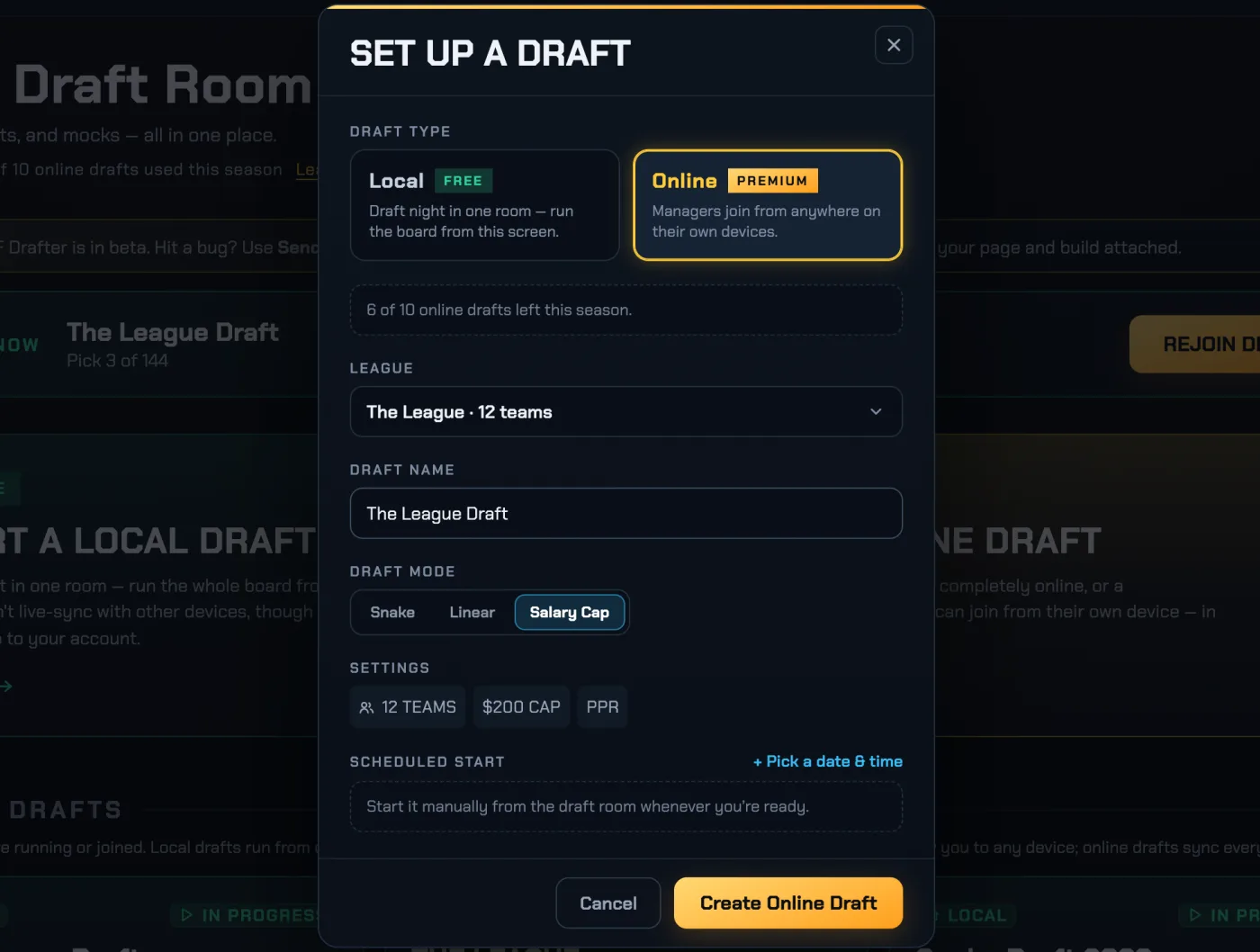
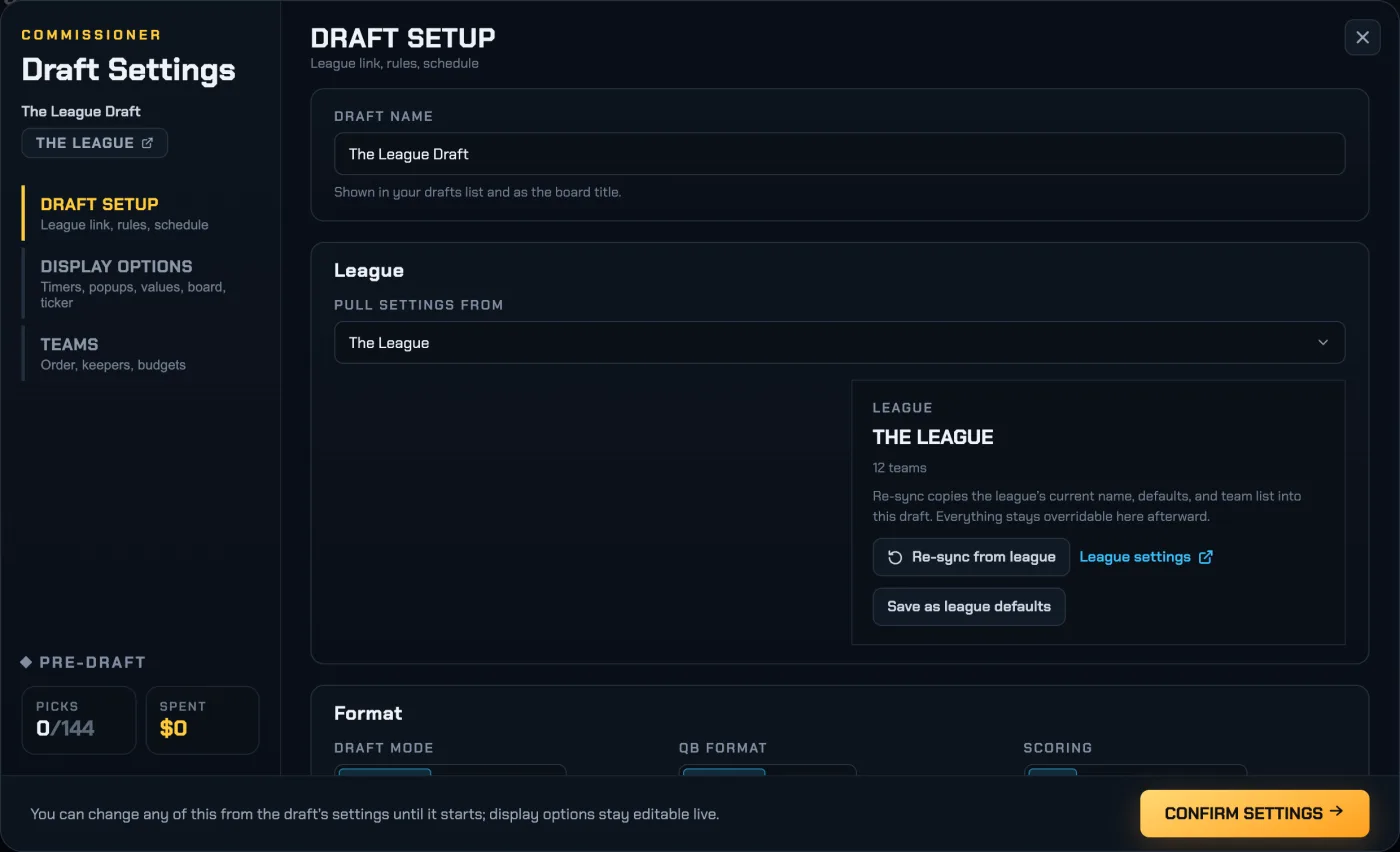
The Set Up a Draft dialog: Local or Online, league, draft name, draft mode, and Create Online DraftDraft Settings: Draft Setup, Display Options, and Teams tabs, with the Confirm Settings bar

SET UP YOUR DRAFT

A Local draft runs entirely from one computer – yours. Nothing to invite anyone to. From Home, hit START A DRAFT and choose Local.

Start from scratch, or select one of your leagues to use its teams and settings.
Set the draft mode (Salary CapSnakeLinear) and basic settings. Optionally schedule a start time.
Hit Create Local Draft.
Draft Setup – ensure all your settings are correct.
Display Options – configure these settings to your personal preference.
Teams – enter your league's team names, then randomize the draft order or set it manually. Optionally enable keepers: set per-team keepers and the keeper cost. Set the default budget, and optionally customize budgets for each team. Optionally enable keepers: set per-team keepers and the round each keeper costs.
Confirm Settings.

Display options can be changed mid-draft; other options stay editable until the draft starts.

Draft Settings: Draft Setup, Display Options, and Teams tabs, with the Confirm Settings bar

ACCEPT YOUR INVITE

Your commissioner invites you by email or with an invite link.
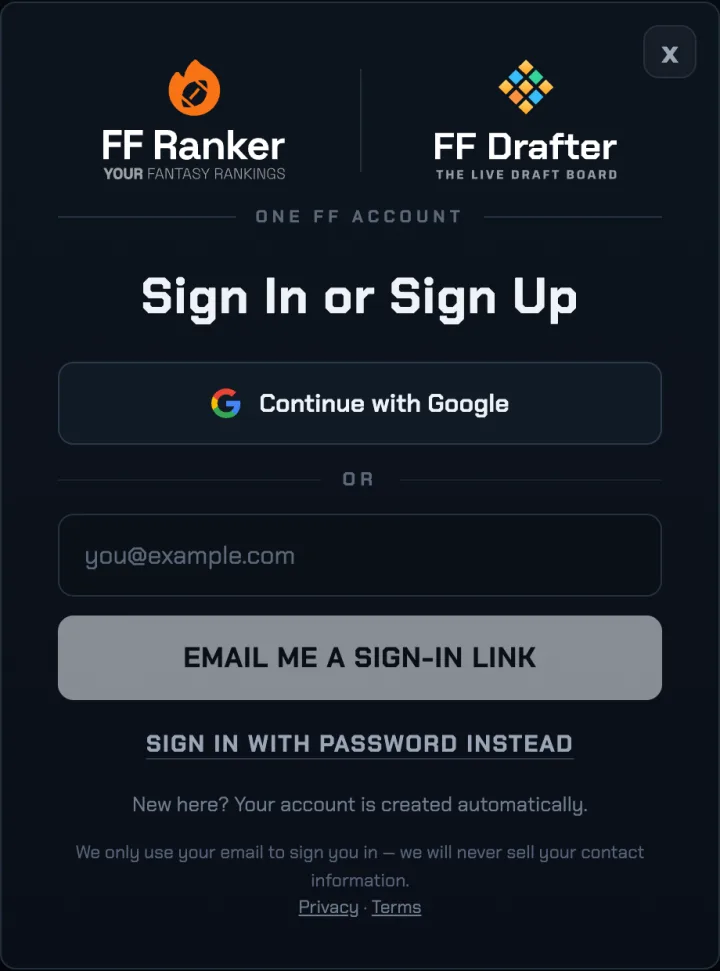
Email invite: hit the link and sign in with that same email address – your team is already reserved for you.
Invite link: sign in and claim your team.
Your league – and any drafts your commissioner has created – now appear on your Home page.
The FF Drafter sign-in dialog: continue with Google, or get a sign-in link by email

START A MOCK

From Home, hit Create Mock Draft.
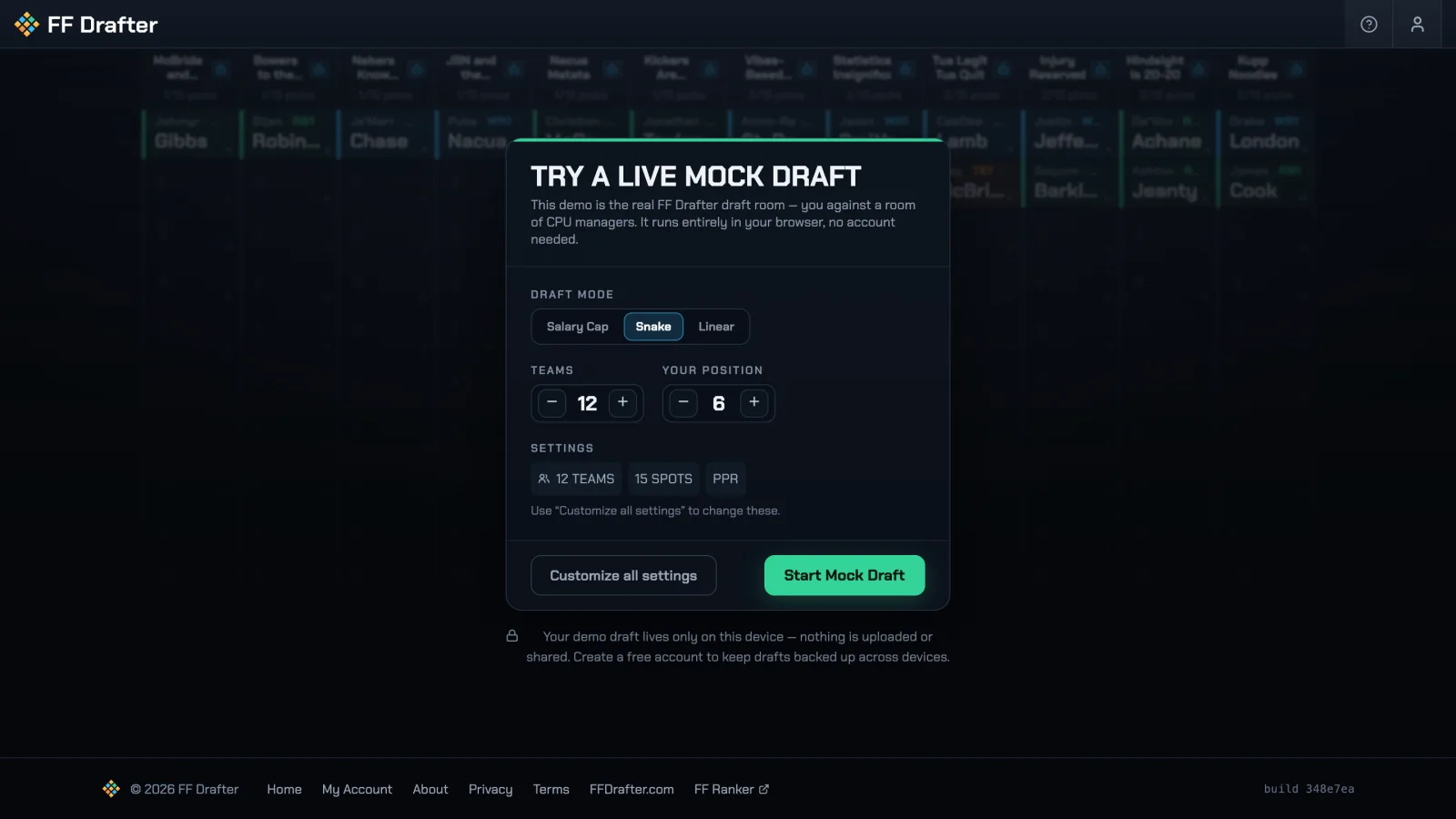
Pick the draft mode (Salary CapSnakeLinear), the team count, your seat, and the CPU speed.
Base it on your league to practice with its real teams, budgets, draft order, and keepers.
Hit Start Mock to draft immediately – or Customize settings for the full setup (rosters, timers, which seats are human and which are bots).
The mock draft setup card: draft mode, teams, your position, and CPU pick speed – over a live board

DRAFT DAY

Open the draft on ayour computer.
Cast to a TV / projector, or connect with an HDMI cable.
Click the TV button in the top bar to turn on TV MODE, enable full-screen, and adjust zoom settings to your preference. TV MODE shows a generalized view for everyone in attendance, while Draft view stays personalized to the signed-in user.
Managers in attendance can bid from their phone or rely on the commissioner for bidding.
Managers in attendance can pick from their phone or call their pick to the commissioner.
Remote managers join the draft from their own device. Their bidpick controls sync to the shared draft board.
Want the controls off the big screen? Open the draft in a second window of the same browser – the two stay in sync.
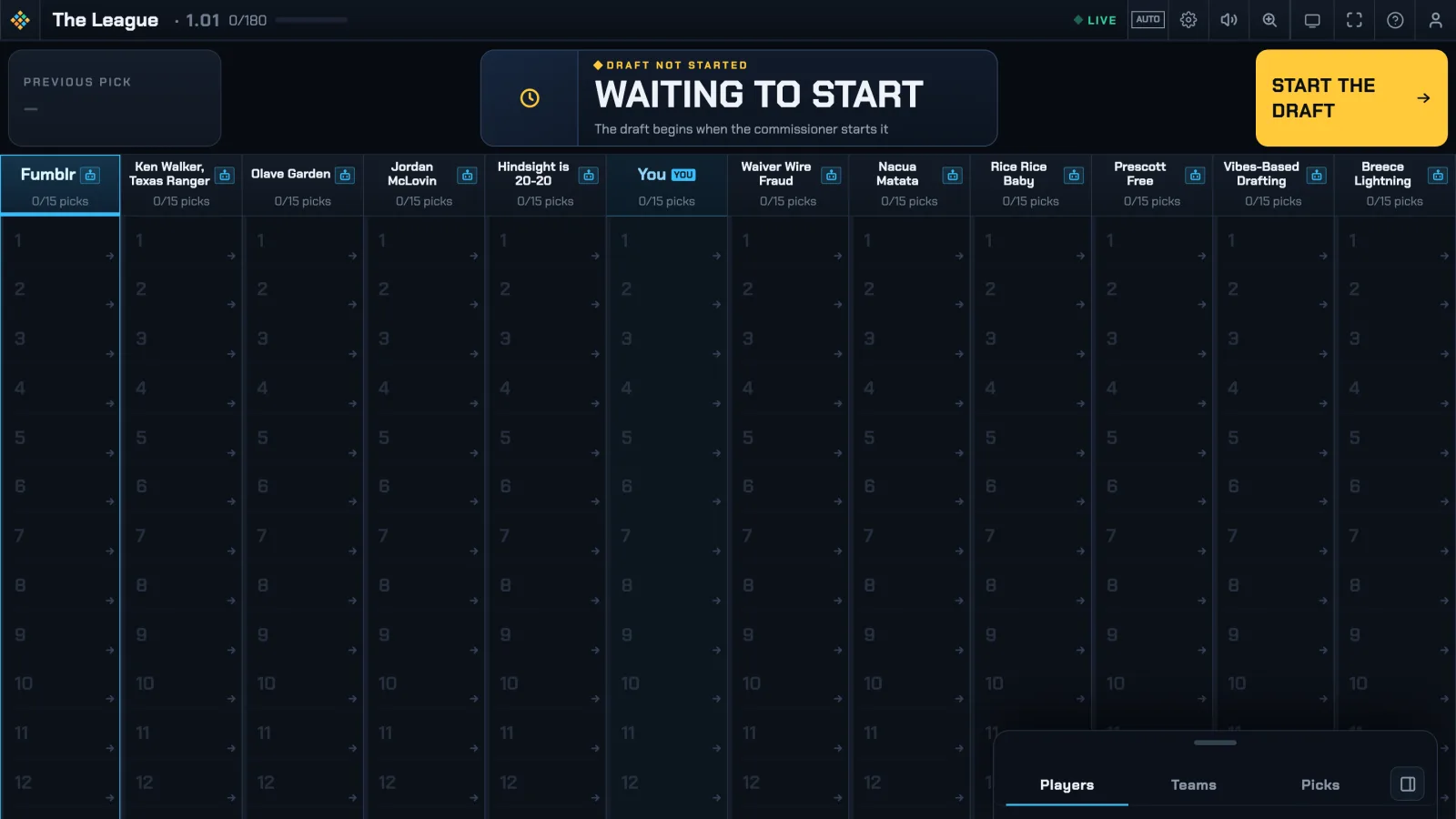
When the room's ready, hit START THE DRAFT.
Open the draft from your Home page – phone, tablet, or computer.
The board, the clock, and every pick update live as the room drafts.
Drafting in person? You can leave your phone in your pocket – watch the TV, call out your bidspicks, and the commissioner books them.
The pre-draft room: WAITING TO START, with the commissioner's START THE DRAFT button
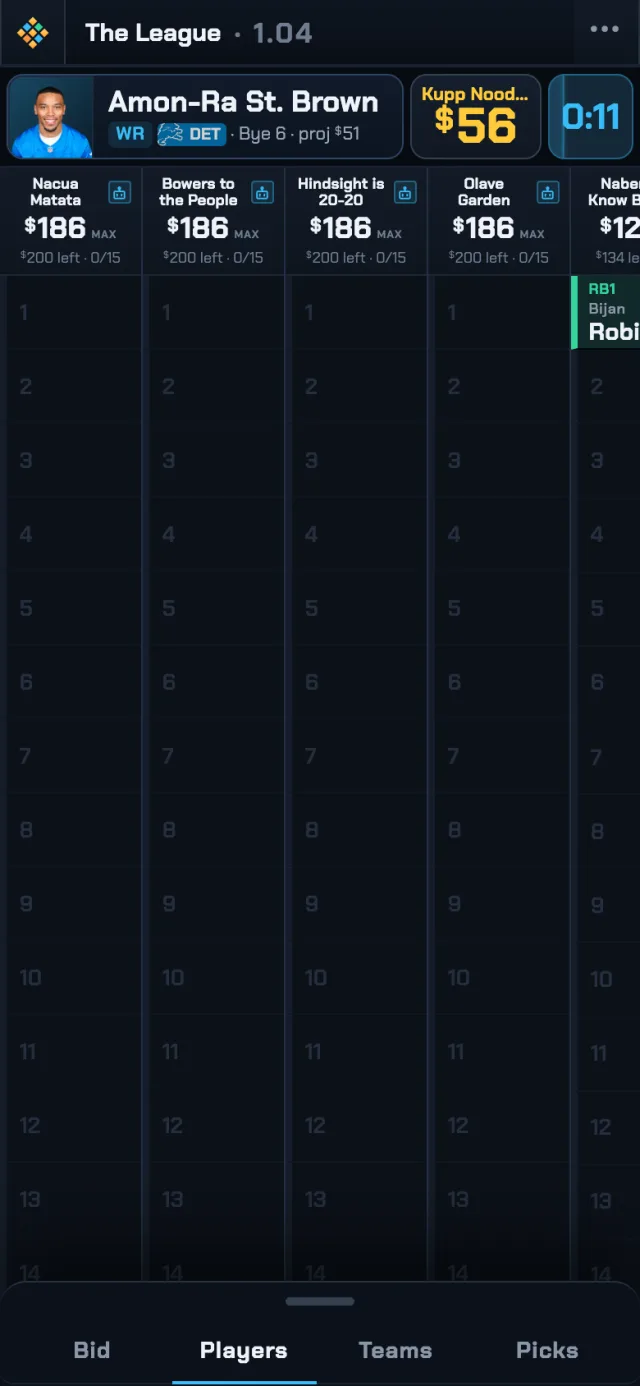
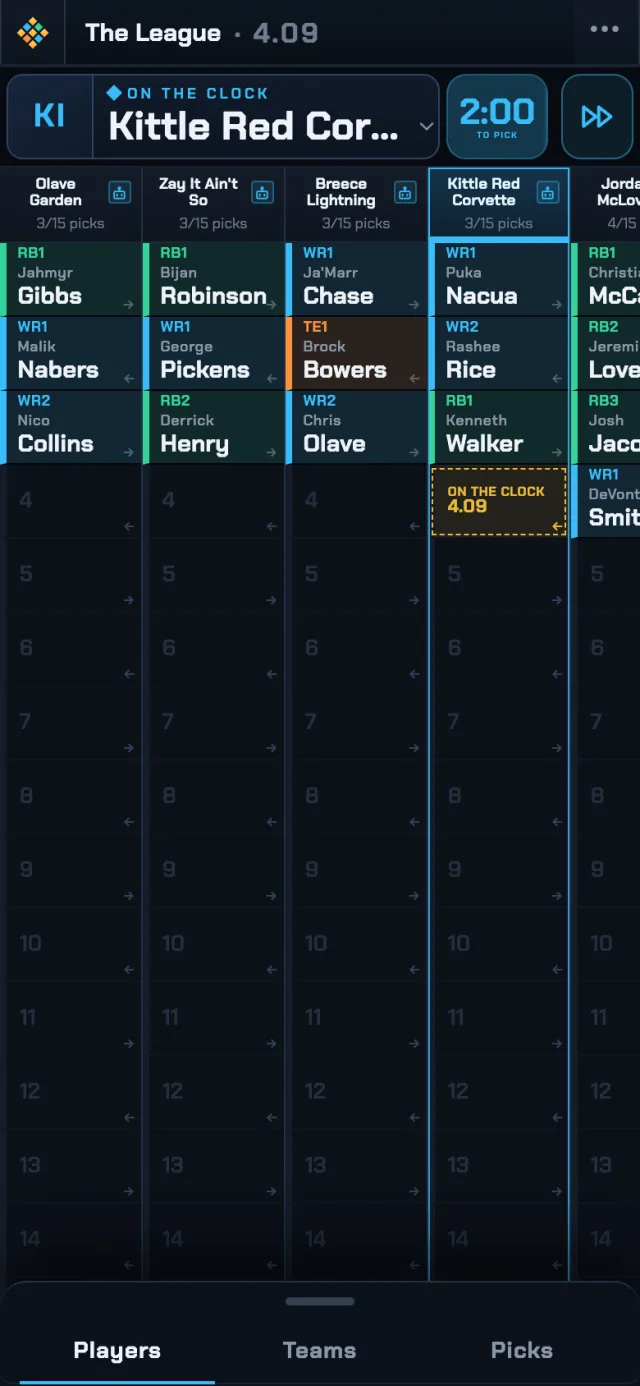
The draft room on a phone: the player on the block, the high bid, and the live boardThe live board and pick clock on a phone

RUN THE AUCTIONRUN THE DRAFT

The entire draft can be run from the computer driving the TV, or another computer signed into the commissioner account.

You're the auctioneer – the whole draft runs from your keyboard.

The room calls out picks; you book them.

NOMINATING

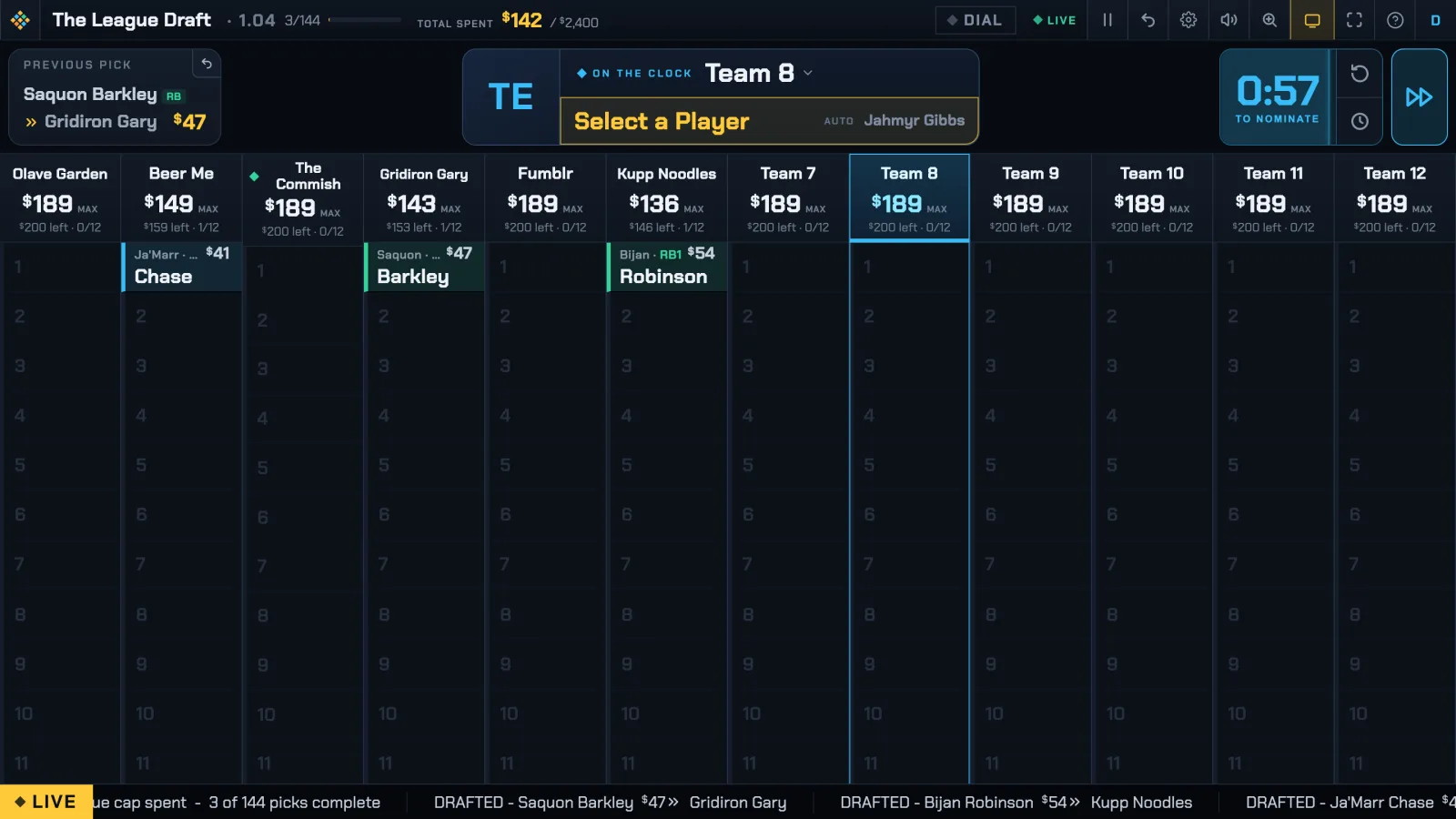
The header will display which team is on the clock to nominate a player. Allow that team to nominate from their device, or click Select a Player to nominate on behalf of a team.
The header will display which team is on the clock to nominate. Click Select a Player to nominate on their behalf.
This button also displays which player will be auto-nominated if a player is not selected before the timer expires.

BIDDING

Bidding generally happens in the room, aloud.
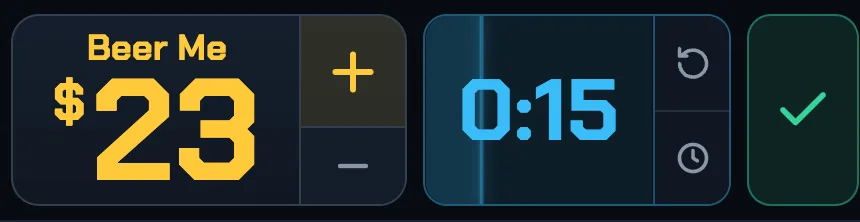
Set the current high bid: use the bid controls (or up/down keys on your keyboard) to set the current bid amount.
Set the high bidder: once the bidding has concluded, or at any point during bidding, click the name of a manager to assign them as the high bidder.
Managers may also bid from their own device, which updates the common draft board.
When the timer hits zero, the winner is booked and the next nomination is up.

If you prefer more traditional (but more cumbersome) per-team bid controls, you can enable them in Settings under Display Options.

COMMISSIONER CONTROLS

Click the timer to pause it. Or use the reset and set buttons for additional control.
Click the fast-forward button to skip nomination, or the check button to confirm the current bid/bidder.
Use the undo button on the Previous Pick section to undo booking and put the previous player back on the block.
Use the Settings button to view and change draft settings at any point. This is helpful for fine-tuning the timer and other display settings.
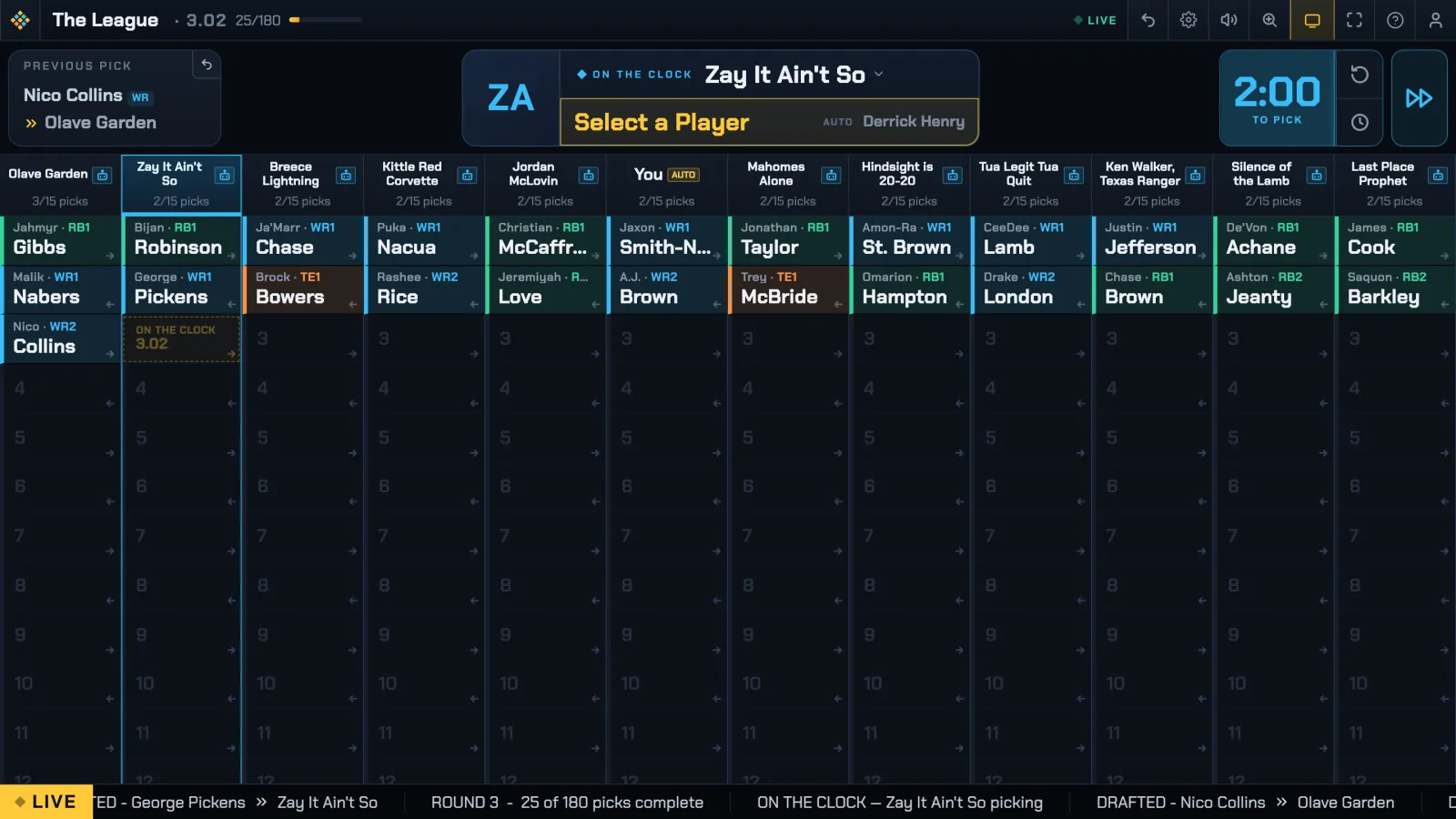
The header will display which team is on the clock. Allow that team to pick from their device, or click Select a Player to pick on their behalf.
The header will display which team is on the clock. Click Select a Player and enter their pick.
This button also displays which player will be auto-picked if a player is not selected before the timer expires.
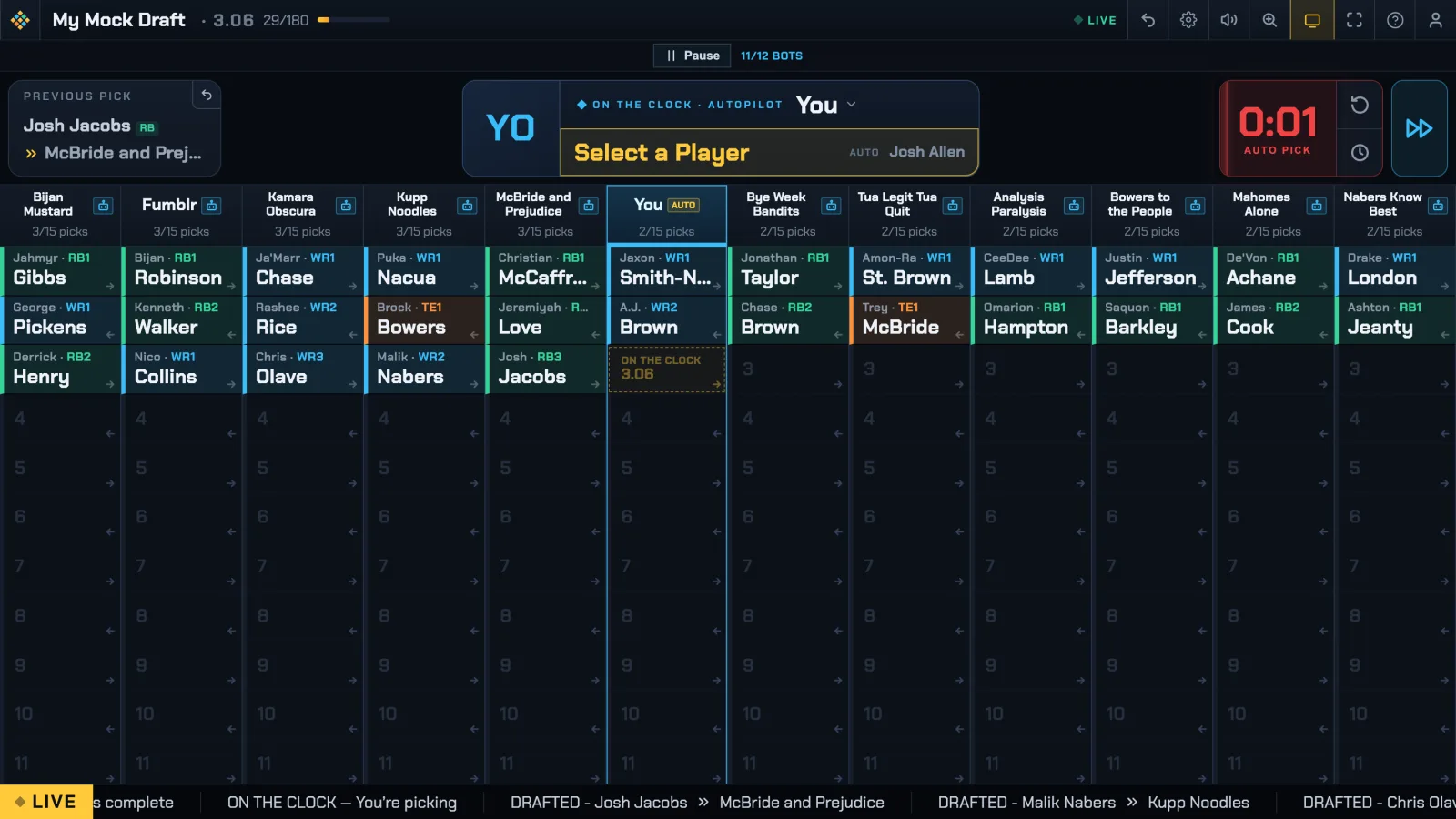
The pick order reverses every round – arrows on the board show which way it's traveling.
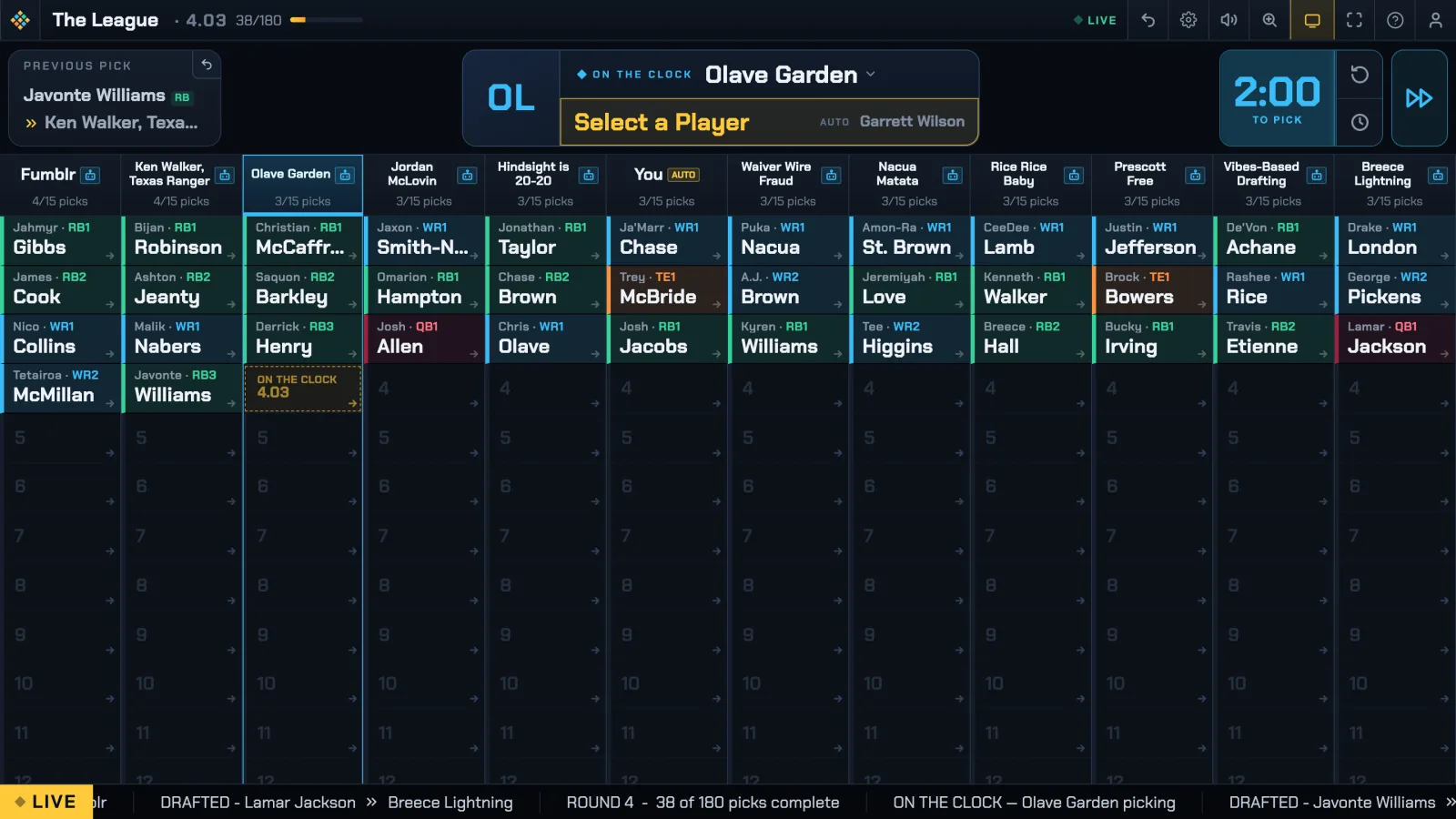
The pick order is the same every round.
Managers can turn on AUTO in the top bar to draft best-available whenever they're away.

COMMISSIONER CONTROLS

Click the timer to pause it. Or use the reset and set buttons for additional control.
Click the fast-forward button to make the pick for the team on the clock.
Use the undo button on the Previous Pick section to undo the last pick and put that team back on the clock.
Use the Settings button to view and change draft settings at any point. This is helpful for fine-tuning the timer and other display settings.
A nomination turn on the board: Select a Player, with the auto-nominate suggestion showingThe bid controls: high bidder and amount with plus/minus, the clock with reset and set, and the confirm checkA snake board mid-draft: the pulsing on-the-clock cell and pick-direction arrowsA linear board mid-draft: rosters filling in draft order

BIDDINGMAKING YOUR PICKS

The board tells you when it's your turn to nominate – search a player and set the opening bid.
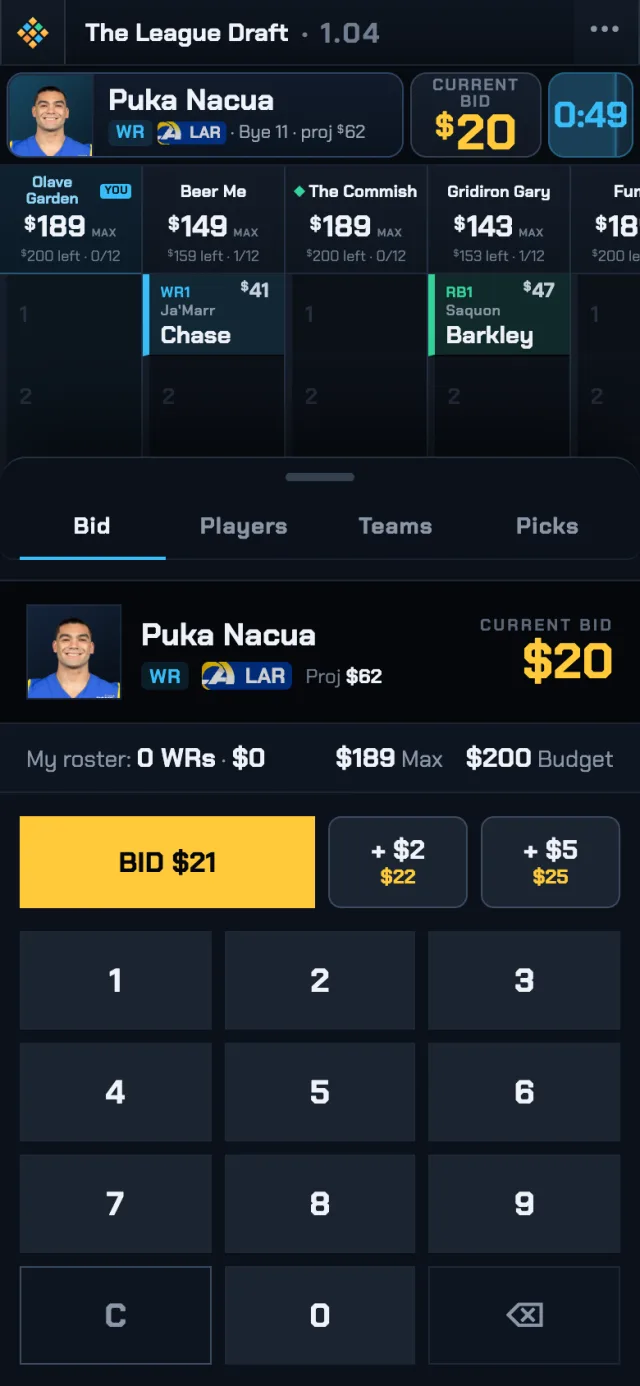
Use the bid controls to raise – your bids update the room's board instantly.
When the timer hits zero, the high bidder wins the player.
Your team's column lights up when you're on the clock – search a player and tap to pick.
The pick order reverses every round.
The pick order is the same every round.
Stepping away? Turn on AUTO in the top bar and your picks go best-available until you're back.
The Bid sheet on your phone: the current bid, a one-tap BID button, quick raises, and a keypad

DRAFT AGAINST THE BOTS

On your turn, nominate: search a player and set the opening bid.
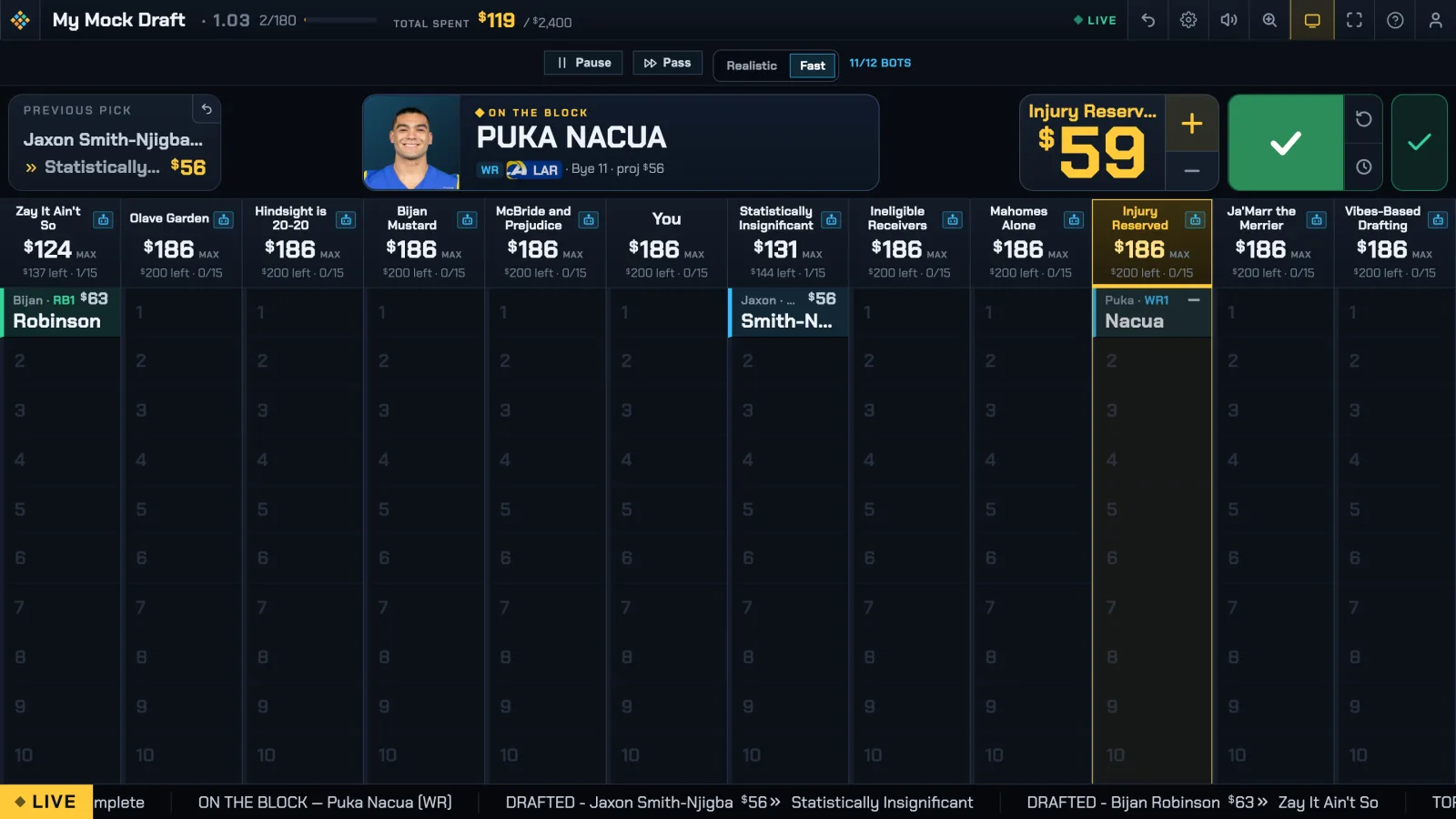
Bid with the controls – the bots bid back, and every bot has its own valuation of the player. When the timer hits zero, the winner is booked.
Hit Pass to skip a player you don't want.
Pick when you're on the clock – the bots handle every other pick.
The pick order reverses every round.
The pick order is the same every round.
Adjust the bot speed anytime from the strip at the top. Pause whenever you need a break.
Want the room view? The TV button in the top bar turns on TV MODE – a generalized view for everyone in attendance, while Draft view stays personalized to you.
A Salary Cap mock mid-auction, with the bot speed strip at the topA snake mock mid-draft, with the bot speed strip at the topA linear board mid-draft: rosters filling in draft order

ENTER THE RESULTS

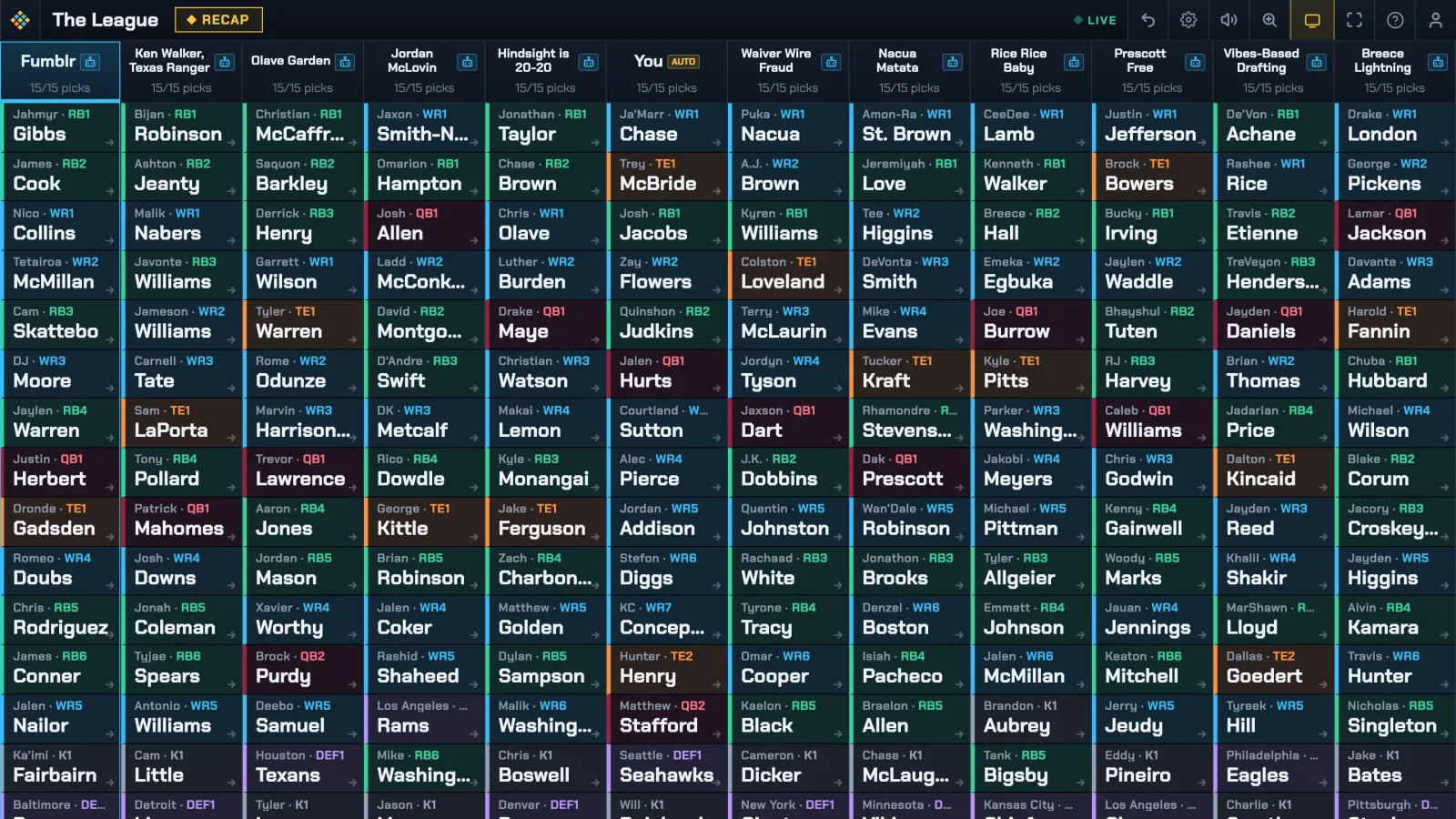
When the last pick books, the recap opens automatically.
Hit Export results to copy each team's entry sheet – or download the CSV – and enter the rosters in your league platform.
Or skip the typing: our free Chrome extension enters every pick into ESPN, Sleeper, or Yahoo for you.
Save PDF recap keeps a copy for the league.
A completed draft board: every roster filled

AFTER THE DRAFT

When the last pick books, the recap opens with every final roster.
Need your own copy? Export results has each team's entry sheet and the CSV.
A completed draft board: every roster filled

AFTER THE MOCK

When the last pick books, the recap opens.
Hit Rerun on your Home page to start a fresh mock with the same setup.
A completed draft board: every roster filled

DRAFT DAY SHOULD BE
A PARTY, NOT A SPREADSHEET.

Setup is easy. Running a draft is even easier.